In this detail area, you can designate special prices to a contact. In addition, special prices can be copied and removed.
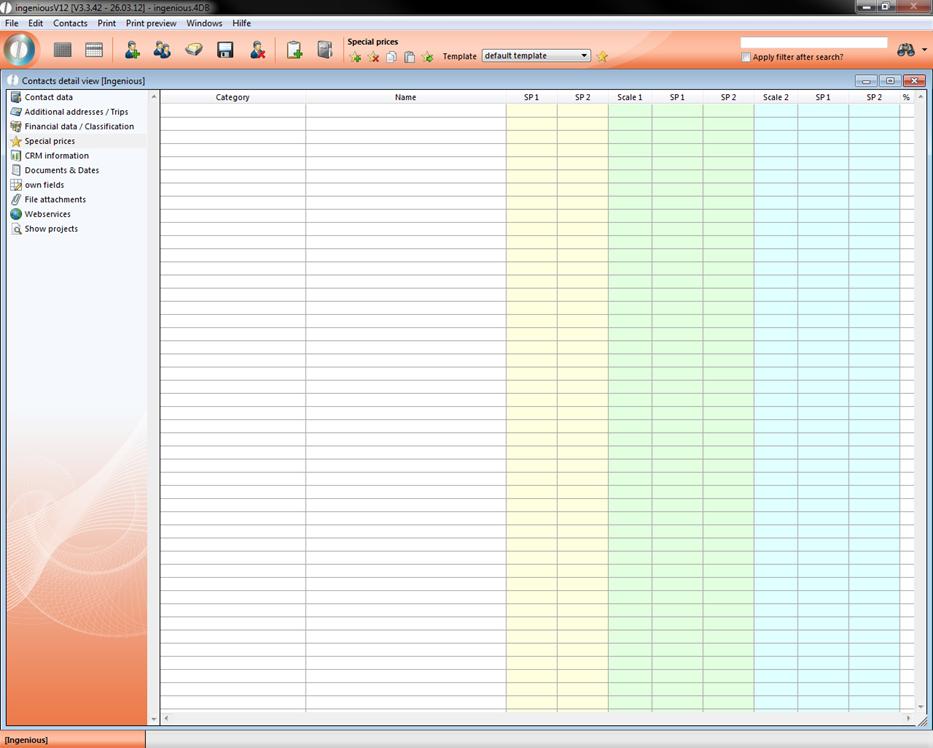
Special prices detail area
Practice with creating and deleting special prices
1. Click on the  button to create a new special price.
The following window will appear.
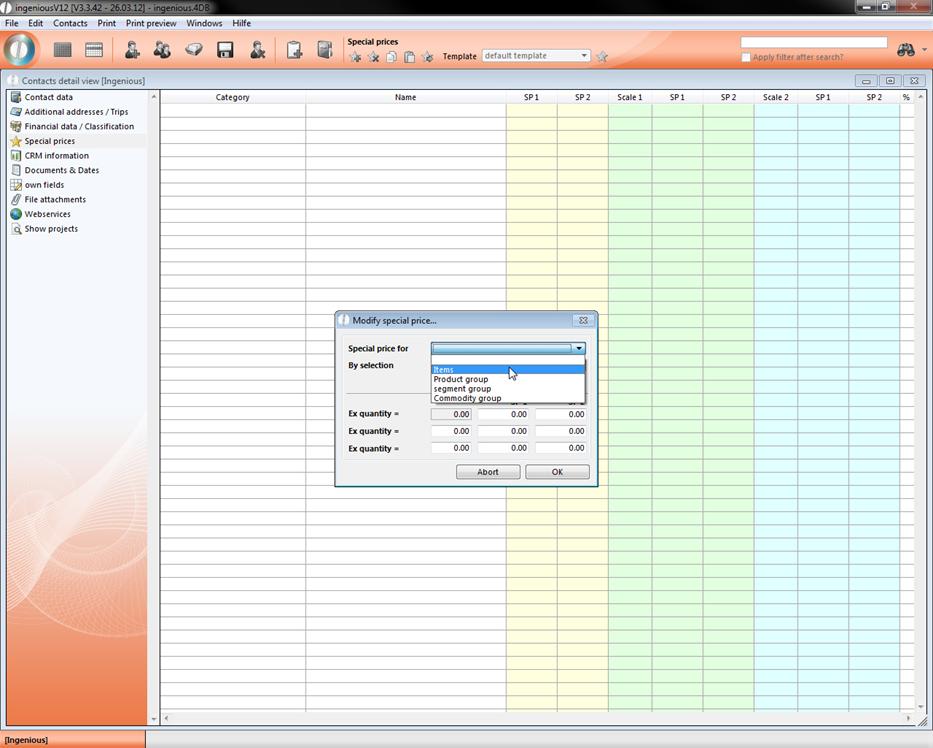
2. In the pop-up window shown above, select the special price amount you want to quotation for a “Supplier”, a “Commodity Group”, a “Product Group” or for a single “Article”. In this example, we will select the option “Article”.
3. If you don’t know the exact description of the article, simply click on the  button next to the input field “By article”.
4. The article module window will appear. Here the corresponding article can be selected by double-clicking.
5. The article window will close and the corresponding article is listed in the input field. Now you only have to fill out “VK 1 and “VK 2” starting with 0 and two arbitrary quantities.
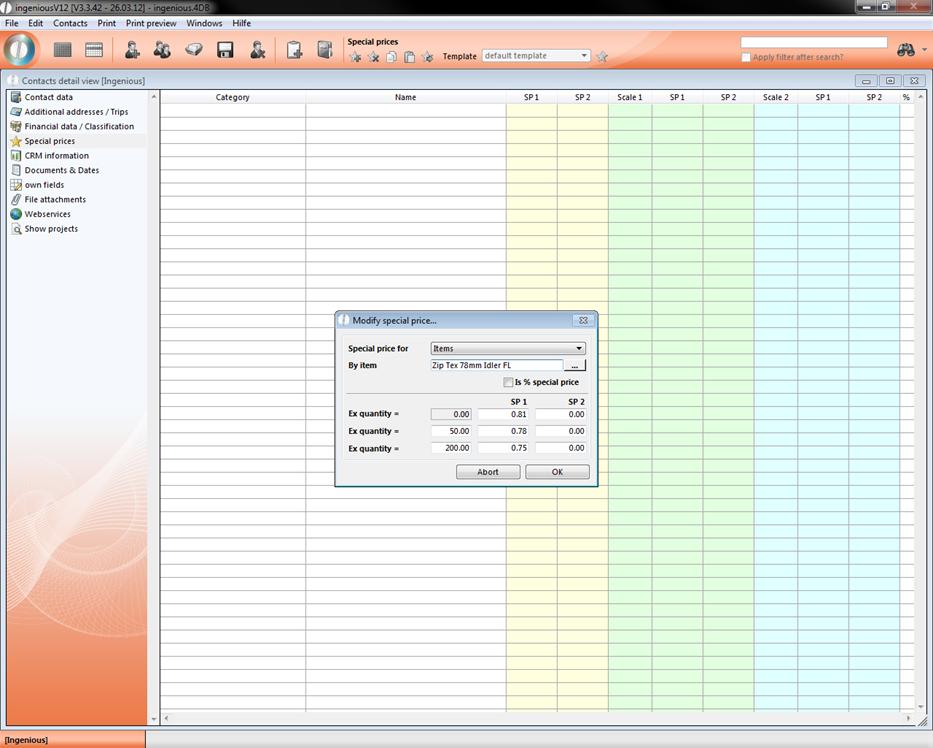
6. After confirming by clicking with your mouse on “OK”, or by pressing your enter key on your keyboard, your entries will be saved and the special price will appear in the detail view “Special Prices”.
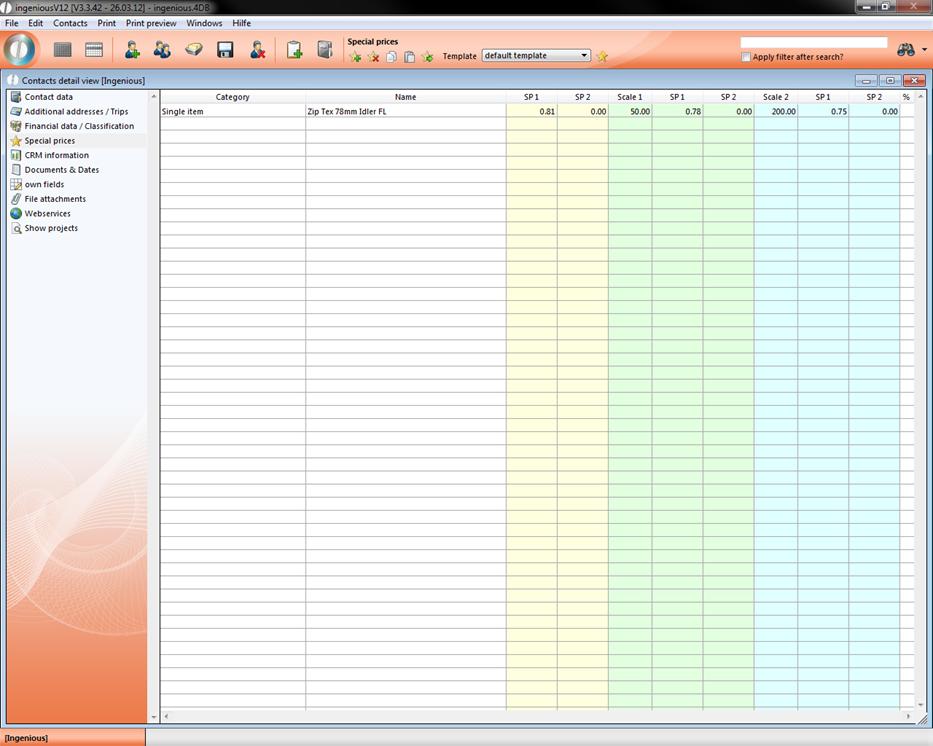
The special price in the special price detail view
In order to delete the special price again, please proceed as follows:
7. Mark the special price with a mouse click. Click on the  button to delete the special price that was marked. Confirm the request with “OK”.
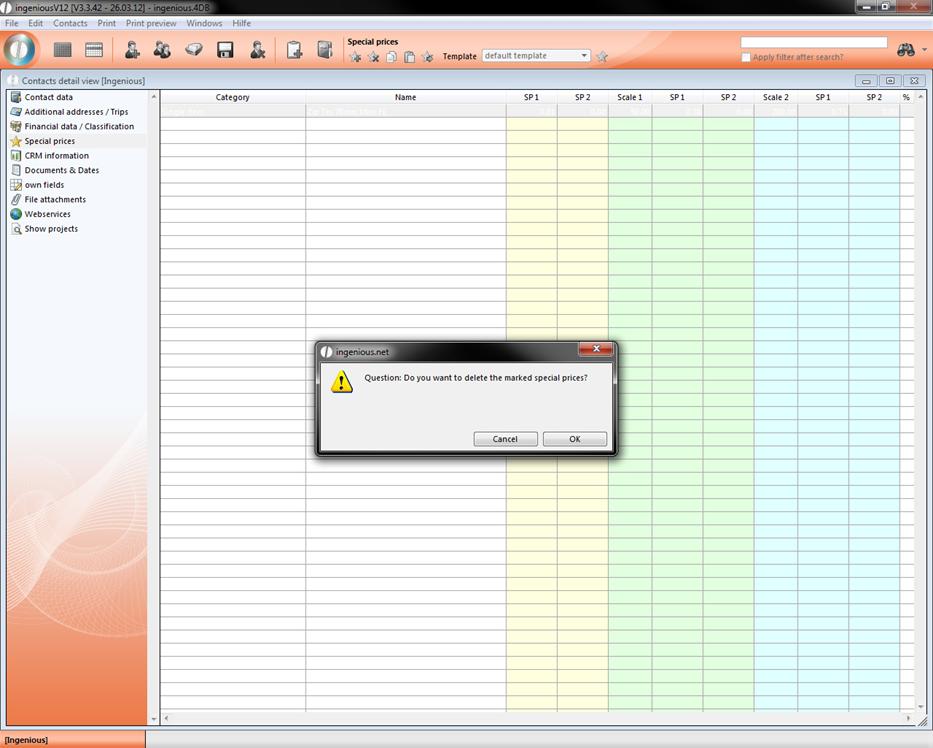
Exporting special prices
It is possible to export special prices with the  button so that a wholesaler or manufacturer can pass on their fixed special prices to the retailers. Special prices can be imported adequately with the “Program Settings” administrative tool in the “PP terms” area.
Special price templates
You can also use self-created templates for the special prices. With the help of those it is possible to assign a special price to multiple contacts. This is really efficient for example when you want to do add a special price to a specific contact group. When you click on the popup field you will get a list of all available special price templates that you can add by a simple mouse click.
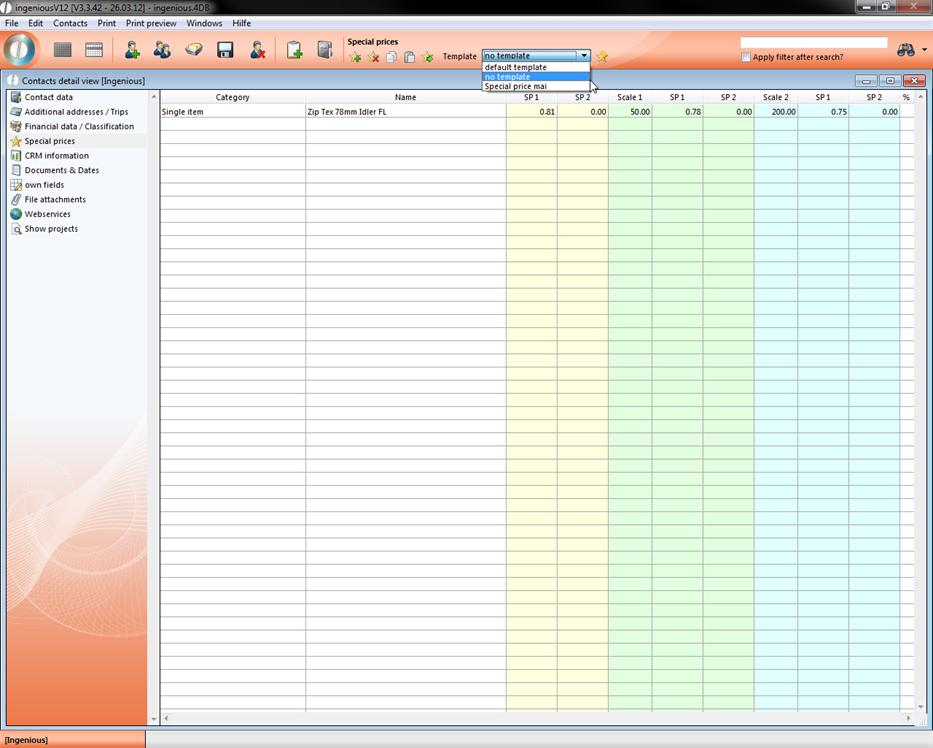
When you select the option “default template” the special price template will be used, that was set in the program settings. There you can choose a template, which will be automatically assigned to every contact that has selected the default template. On that way you have got the opportunity to assign a special price to multiple contacts.
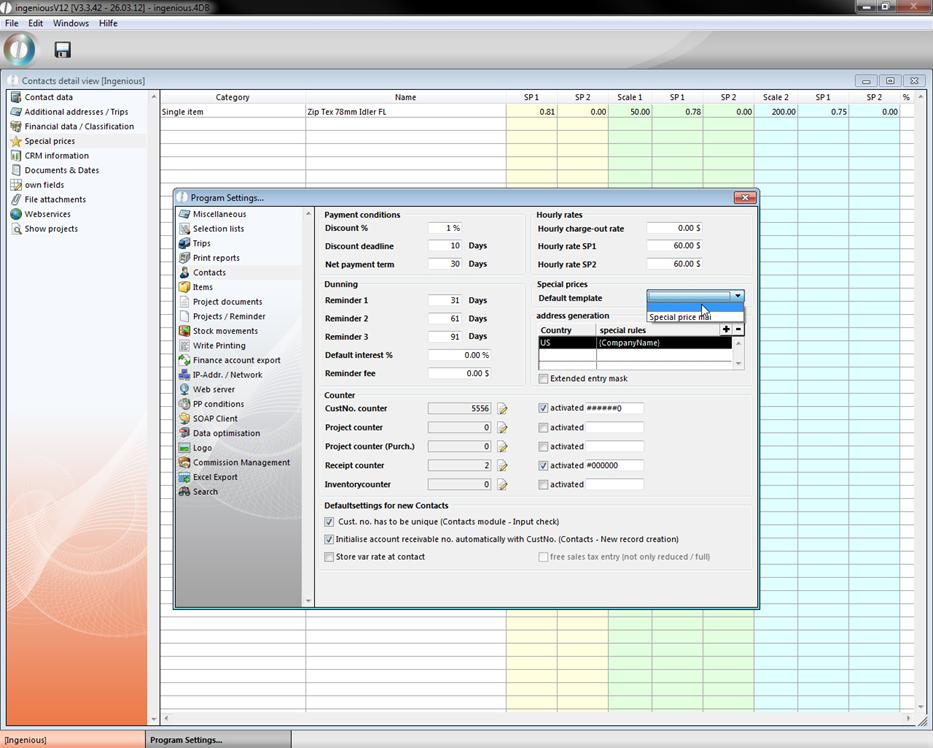
You can create and manage special price templates with the menu “Contacts – Special price templates”.
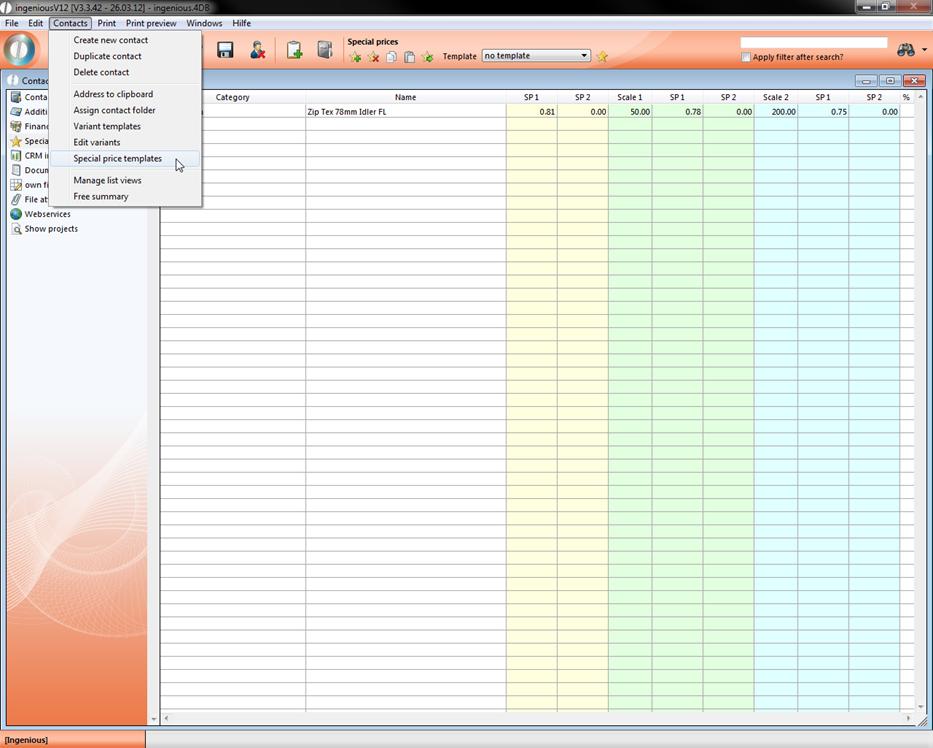
The window “Manage special prices” will open up. In the selection area you can see the already created special price templates. With a click you can choose a specific template and see in the right area which special price items it contains. When you double click an item the special price edit window will open up.
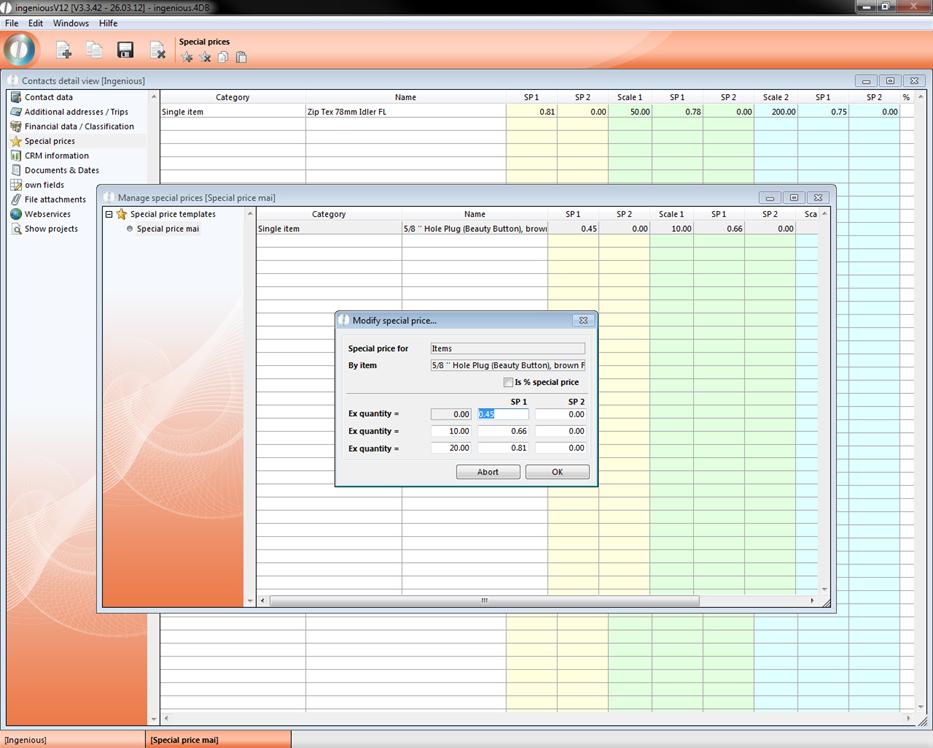
With the help of the buttons in the icon bar you can add special prices, delete the selected ones,  copy the selected ones and
  paste them. A new special price template you can create by clicking
  .
.
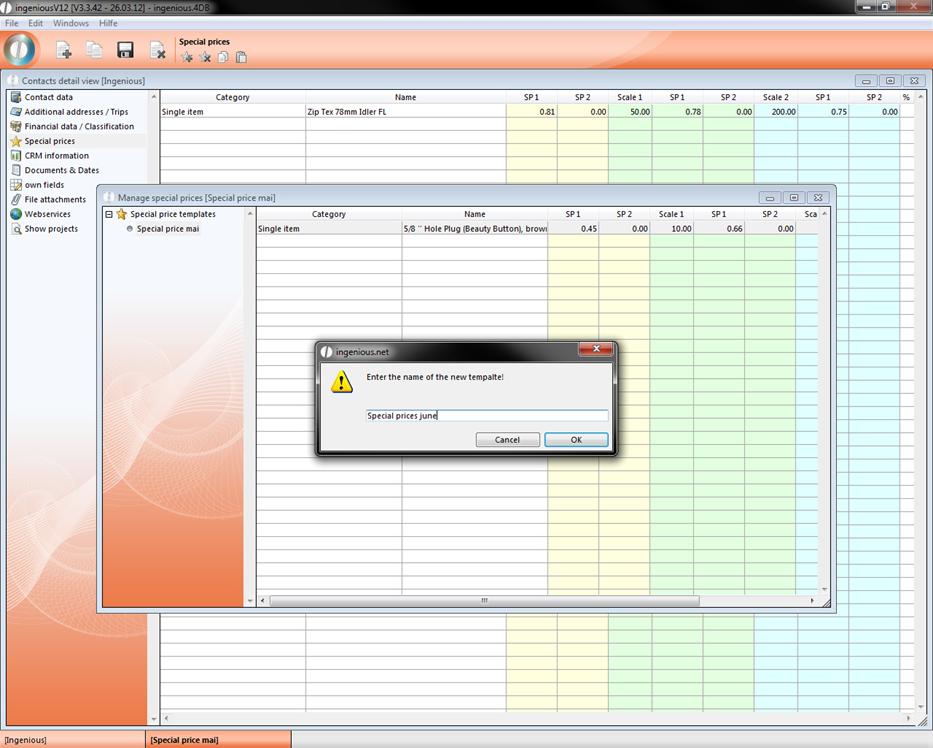
A window will open up where you can name the template.
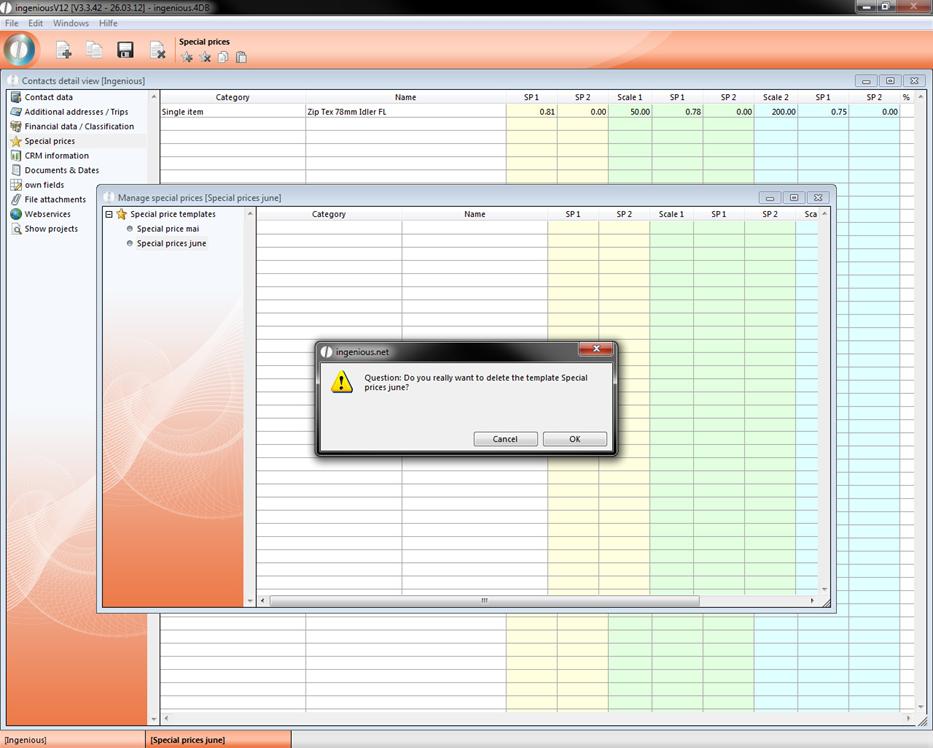
By clicking  you can delete a template.
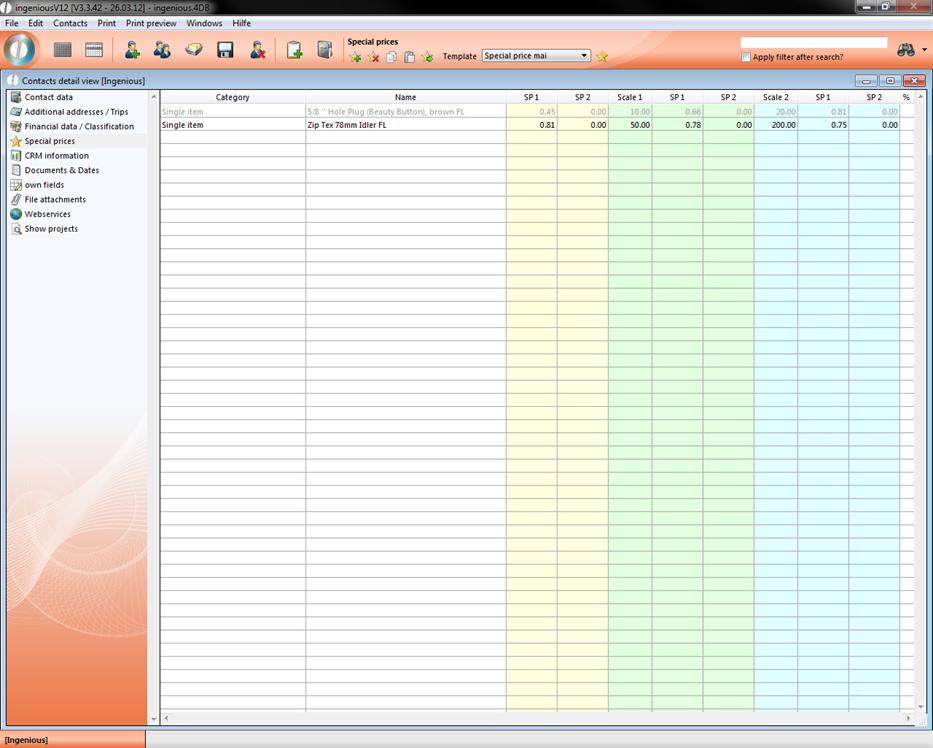
When you add a special price template to a contact the affected items will be displayed grey colored in the list. If an item from the template already has got a special price assigned in the contact, then only the special price from the template will be used. You also have the opportunity to copy a the special prices from the template to the contact with  . The items will be added to the contact and will no longer be connected to the template.
Special price assistant
With the help of the special price assistant, you can keep a convenient overview of all customized special prices. In the administrative tool “Program Settings” you will find the column, “Print Reports”. With the  button, you can now create a new report. In the field “Attach to which module?” select the option “Contacts list header” and in the field “Type of print report” select the option “Special prices.4sp”. After you have filled out the remaining empty fields, open the assistant with the
  button.
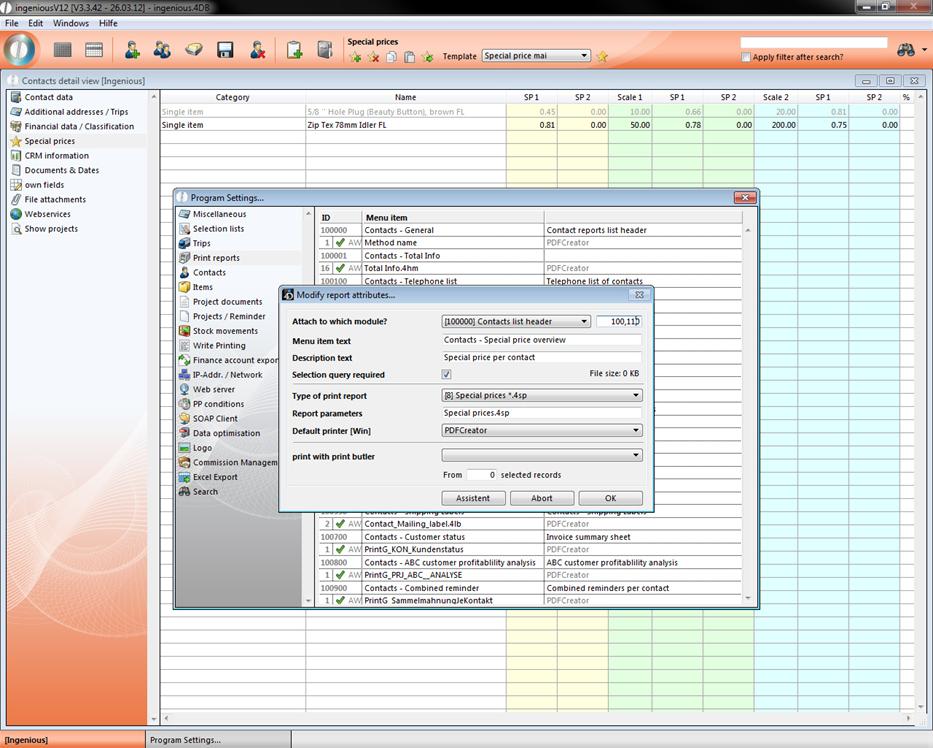
The assistant contains a table with three columns: “Category “, “Special price description” and “Text print report”. If you click on a cell in the “Category” column, a list field with the selection o options opens: “Commodity Group”, “Product Group” and “Single Articles”. Now select one of the three groups that will contain special prices. In the column, “Special price description”, click on the cell and a list field will open that is oriented towards the group previously selected. If you selected the option “Single articles”, you will arrive at the article catalog in which you can select your desired article by double-clicking.
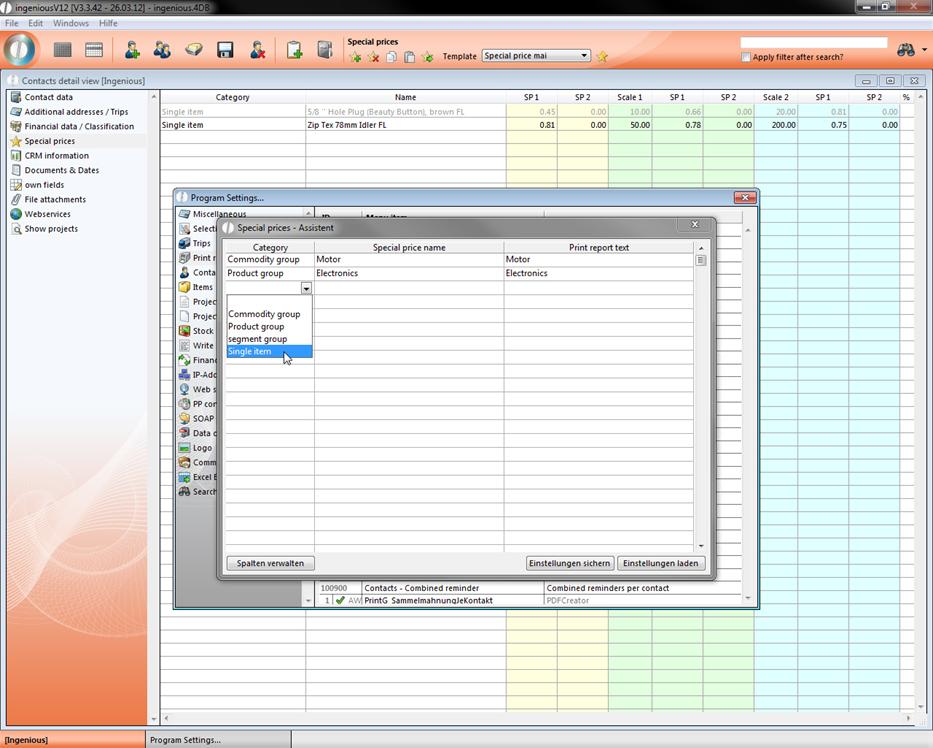
With the “Save settings” and “Load settings” button, you have the possibility to export or import the selection lists. When you have hit all of the settings, leave the assistant and the program settings. Pay attention to the settings when you leave the assistant for security. In order to use the special price assistant, activate the corresponding report rights.
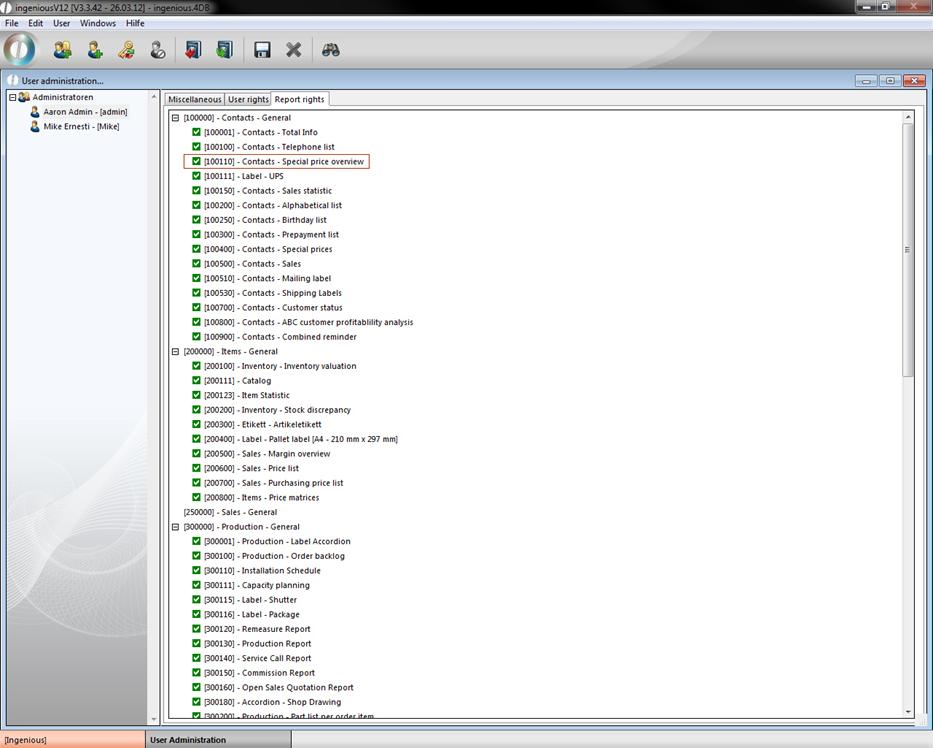
You can finally retrieve the created print report through the “Print” menu in the “Contacts” module.
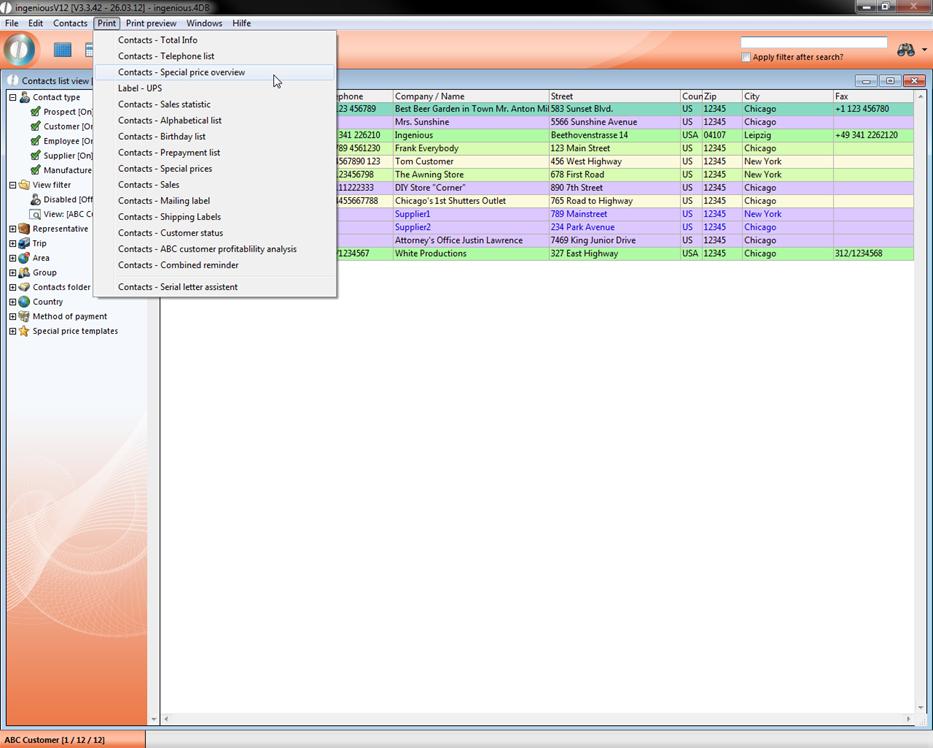
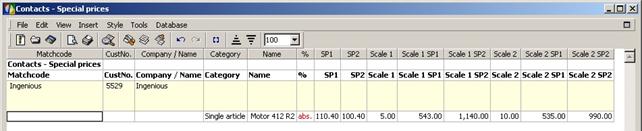
A spreadsheet analysis window by Ingenious.V12 will open, in which the selected contacts, with the pertinent special prices, are listed. You can now print the list with the “File” menu. In addition, you have the possibility to export the listing as an HTML document.